
Debian Linux 13.7 USB
5.0Editor score
Legendary stability and reliability
Fast and lightweight system
Open-source freedom and privacy
This guide compares the best bootable Linux USB drives for beginners and pros, featuring preloaded distros like Ubuntu, Mint, and Kali for easy testing.
A bootable Linux USB drive lets you run an operating system directly from a flash stick without installing anything on your hard disk. This portability is perfect for testing new distros, repairing systems, or carrying your own secure computing environment wherever you go. Modern options often include multiple versions preloaded so you can switch between them easily depending on your needs.
We compared ten top-rated options available on Amazon based on compatibility, included software, ease of use, and customer feedback. Each product was evaluated for its ability to work with legacy BIOS and modern UEFI systems, ensuring broad hardware support. We focused on drives that offer stable, tested ISOs and clear instructions for users who may be new to Linux.
Every pick in this list shows what distributions are included, how much storage is available, and what makes each drive unique for specific use cases. Note that product availability and pricing can change frequently so please check the current details before making your final purchase decision today.
5.0Editor score

4.1Editor score

4.6Editor score
The following table provides a side-by-side look at the key specifications and features of all ten products reviewed in this guide to help you make an informed decision.



This 16-in-1 bootable USB drive stands out as the most versatile option on our list with a massive selection of Linux distributions and even Windows 11. It holds 64GB of storage allowing you to run multiple operating systems directly from the stick without touching your internal hard drive. With a solid rating from users it proves reliable for both beginners trying Linux for the first time and power users who need specific tools like Kali or Tails.
We may earn a commission when you buy through this link, at no additional cost to you.
The variety included is impressive ranging from user-friendly options like Linux Mint and Zorin to advanced tools like Kali and Archcraft. Each ISO has been tested to ensure it boots correctly on modern UEFI systems as well as older legacy BIOS machines. The product description notes that video instructions and boot menu hot key lists are provided which significantly reduces the frustration often associated with setting up bootable media.
While the drive is powerful you might need to disable Secure Boot in your BIOS settings to get everything working smoothly on some machines. The sheer number of options can also be overwhelming if you just want a simple setup but for those who want choice this drive delivers. It is a fantastic toolkit for IT professionals who need to troubleshoot different systems without carrying multiple sticks.
You should buy this if you want maximum flexibility and the ability to test many different environments from a single device. It is ideal for students developers and anyone who needs a portable computing kit that adapts to various hardware configurations. This drive is the top recommendation for anyone who values variety and comprehensive coverage over simplicity.
Whether you need a lightweight distro for an old laptop or a security-focused system like Kali this drive has it all preloaded and ready to go.
The inclusion of video boot instructions and a hot key list makes setting up the drive much easier for users who are new to the Linux ecosystem.
We may earn a commission when you buy through this link, at no additional cost to you.
This drive is specifically designed with beginners in mind offering a curated selection of nine Linux distributions that are known for being easy to use and stable. It includes popular options like Ubuntu Linux Mint and Zorin which provide a familiar desktop experience for users transitioning from Windows. The 32GB capacity is sufficient for the included ISOs and leaves room for persistence files if you want to save your settings.
We may earn a commission when you buy through this link, at no additional cost to you.
The manufacturers update the versions regularly to ensure you get the latest long term support releases which means better security and hardware support out of the box. Most of these distros come with essential software like office suites and web browsers pre-installed so you can start using them immediately. The included printed guide helps you navigate the boot process and troubleshoot common issues like black screens after selecting a distro.
One limitation is that this drive does not support ARM-based devices or Macs so you need to ensure your computer uses Intel or AMD processors. The capacity is smaller than some competitors which might limit you if you need to add more custom tools later. However for a first time user looking for a reliable way to try Linux without risk this is a solid choice.
Choose this drive if you are new to Linux and want a straightforward no-fuss introduction to the operating system. It removes the complexity of downloading and burning ISOs manually and gives you a ready-to-run kit with the most friendly options available. This is the perfect starting point for anyone curious about switching to open source software.
The selection focuses on distros known for polished interfaces and helpful communities making the transition from Windows smooth and stress free.
Included versions like MX Linux and Peppermint ensure that even older computers with less memory can run the system effectively without slowing down.
We may earn a commission when you buy through this link, at no additional cost to you.
Linux Mint is widely considered one of the best distributions for desktop users and this dedicated USB drive makes it incredibly easy to try. The Cinnamon desktop environment offers a modern look that feels familiar to Windows users while providing the power and customization of Linux. This specific version includes a full suite of productivity tools and media apps so you can work and play right out of the USB.
We may earn a commission when you buy through this link, at no additional cost to you.
The drive allows you to run Mint in live mode which means you can test the interface and hardware compatibility without modifying your hard drive. If you decide you like it you can launch the installer directly from the desktop to set it up permanently. It comes with powerful tools for graphic design and gaming support making it a complete package for daily use.
Since this is a single distro drive it lacks the variety of multi-boot options if you want to switch between different systems. It is also optimized for modern 64bit systems so it won't work on very old 32bit hardware. However if your goal is to find a stable and beautiful operating system to replace Windows this is arguably the best choice available.
This drive is perfect for users who want a high-quality experience and plan to make the switch to Linux permanently. It is ideal for professionals or home users who need a reliable system for work media and entertainment. The polished nature of Mint ensures you won't face the learning curve often associated with other distributions.
The Cinnamon interface mimics traditional window management making it easy to adapt without relearning how to use a computer.
With office tools and gaming launchers pre-loaded you get a fully functional workstation on a small portable device.
We may earn a commission when you buy through this link, at no additional cost to you.
Debian is known as the backbone of many other Linux distributions and this drive brings that legendary stability to your pocket. It offers a clean environment without bloatware or tracking which makes it ideal for professionals and students who value privacy and security. The system is optimized to run fast even on older hardware ensuring you get the most out of your machine.
We may earn a commission when you buy through this link, at no additional cost to you.
With a perfect rating from buyers this product delivers a trustworthy experience that works consistently across different devices. It provides open-source freedom allowing you to customize the environment exactly how you want. The USB allows you to test the system in live mode before installing so you can verify it meets your needs without commitment.
While Debian is robust it sometimes requires more manual configuration than user-friendly distros like Mint or Ubuntu. The interface might feel less polished to beginners but the trade-off is a rock-solid foundation that rarely breaks. If you have some technical knowledge or want to learn the inner workings of Linux this is the best tool to use.
Buy this if you prioritize stability and privacy above all else. It is excellent for developers or anyone who wants a system that just works without unnecessary features. This drive offers the best value for those who want a pure and reliable Linux experience.
Debian's reputation for stability means you can rely on this system for critical tasks without worrying about crashes or updates breaking things.
The system includes no tracking by default giving you full control over your data and online activity.
We may earn a commission when you buy through this link, at no additional cost to you.
This drive focuses specifically on Linux Mint providing a clean and reliable way to install or repair the operating system. It includes the latest Cinnamon version ensuring you get a modern interface and support for new hardware features. The product is designed to be straightforward allowing you to boot into a live environment where you can test or install without any complications.
We may earn a commission when you buy through this link, at no additional cost to you.
It comes with clear instructions to guide you through the boot settings and installation process which is helpful if you are working on multiple machines. The emphasis on backing up data before installing is a crucial safety measure that helps prevent accidental data loss during setup. This drive is particularly useful for IT professionals who need to deploy Mint across different workstations quickly.
The 16GB capacity is sufficient for the OS but does not leave much room for additional software or persistent storage. It is not designed for Apple Silicon devices so you must check your hardware compatibility before purchasing. However for standard PCs this drive offers a solid and efficient way to get Mint up and running.
Choose this if you need a dedicated tool for installing or fixing Mint on various computers. It is best for users who already know they want Mint and want a reliable medium to carry it. This drive simplifies the deployment process for anyone working in a technical environment.
The drive includes everything needed to install or fix Mint making it a practical tool for technicians and system administrators.
Clear warnings about backing up data help ensure you don't lose important files during the installation process.
We may earn a commission when you buy through this link, at no additional cost to you.
This multiboot drive offers three versions of Linux Mint making it ideal for users who work with both modern and older computers. It includes the latest 64bit version alongside a 32bit option ensuring compatibility with a wider range of hardware than most other drives. This is particularly useful if you need to support legacy machines that cannot run newer 64bit systems efficiently.
We may earn a commission when you buy through this link, at no additional cost to you.
The drive is designed to be plug and play with clear instructions on how to boot and install. Mint is known for working out of the box so you get immediate access to common apps without needing to configure much. The variety allows you to test different versions to see which one suits your specific needs best.
Since it is focused only on Mint you won't find other distributions like Ubuntu or Fedora here. The storage capacity is moderate but sufficient for the included systems. It is a great choice if you want a versatile Mint-only solution that covers many hardware scenarios.
Buy this if you need to support both old and new computers with a single reliable tool. It is perfect for small office environments where hardware ages at different rates. This drive ensures you always have a compatible version of Mint available for any PC.
By including both 32 and 64bit versions this drive ensures that almost any computer can run the system smoothly.
The focus on Mint means you get a stable experience that is easy to maintain and update over time.
We may earn a commission when you buy through this link, at no additional cost to you.
This drive includes a mix of distros and specialized tools like Clonezilla which is excellent for disk imaging and recovery tasks. It also offers Windows XP which can be useful for legacy applications or testing software on older systems. The selection is diverse enough to handle various tasks from daily computing to technical troubleshooting making it a handy utility for tech enthusiasts.
We may earn a commission when you buy through this link, at no additional cost to you.
The product comes with video instructions and a hot key list to help you navigate the boot menu. It supports both UEFI and legacy modes ensuring it works on a wide range of computers. While the rating is slightly lower than others it still provides value for those who need specific tools rather than just general-purpose OSs.
The inclusion of Windows XP might be seen as outdated for security reasons but it serves a niche purpose. The drive is not as polished as the single distro options but it offers functional variety. It is a practical choice if you need a toolkit rather than a primary operating system.
Choose this if you need a utility drive that includes recovery tools and legacy support. It is best for IT technicians who need to handle various hardware and software challenges. This drive gives you the flexibility to tackle specific tasks without carrying multiple specialized tools.
Tools like Clonezilla allow you to back up and restore system images making this drive valuable for data recovery.
Windows XP option supports old software testing providing a unique capability not found in modern Linux drives.
We may earn a commission when you buy through this link, at no additional cost to you.
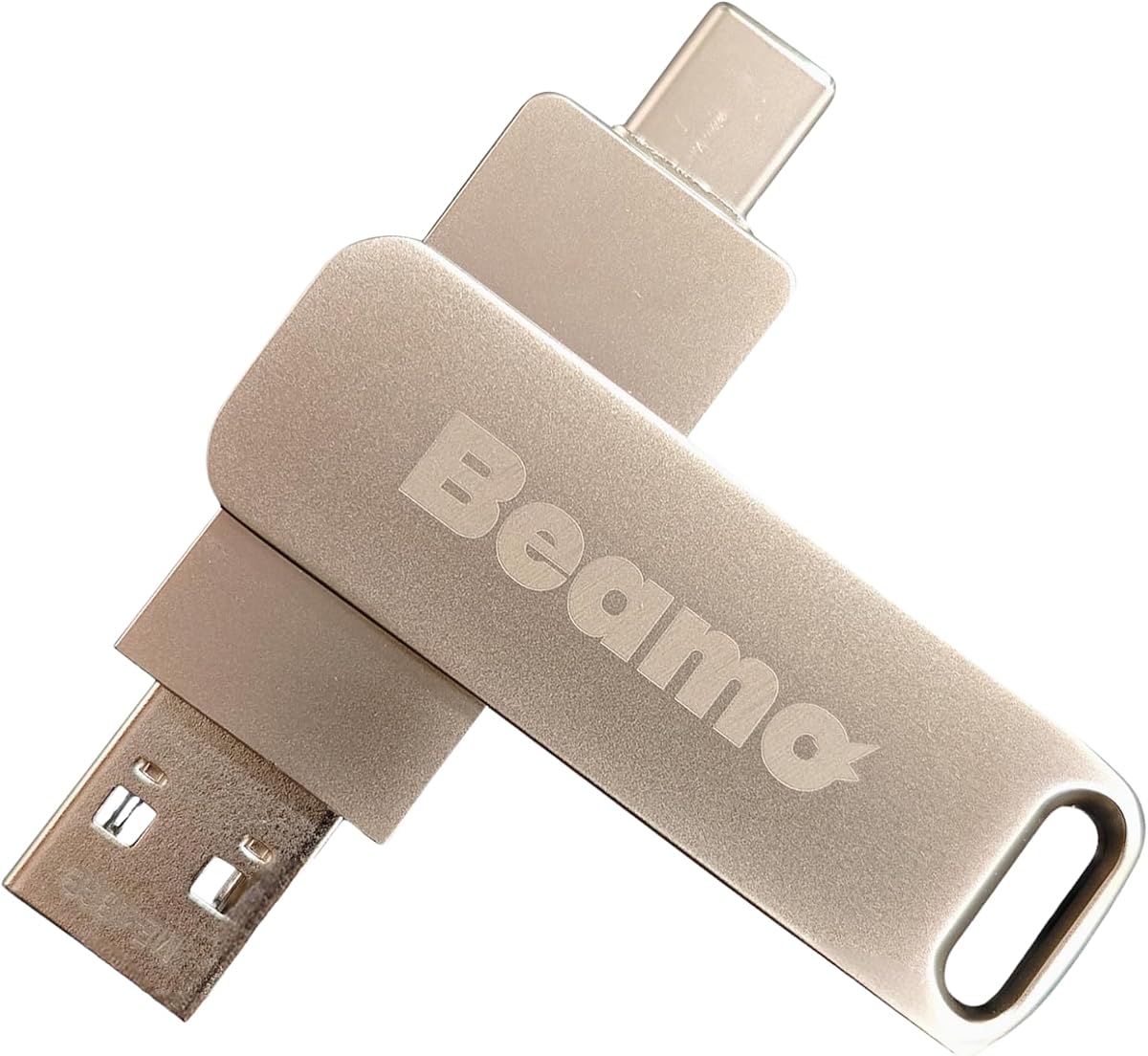
This drive features both USB-A and USB-C connectors ensuring compatibility with modern and older computers without needing adapters. The hardware is built with high-quality flash chips for better speed and longevity than generic drives. It offers a fully customizable approach allowing you to upgrade the ISO later if you want to try a different version without replacing the stick.
We may earn a commission when you buy through this link, at no additional cost to you.
The Mint Cinnamon version included is optimized for performance making it suitable for reviving older hardware. It comes with clear instructions for customization and support which ensures you can maintain it over time. The privacy focus means no forced updates or account requirements giving you control over your system.
It is limited to Mint so you won't get other distros but the customization aspect adds flexibility. The price might be slightly higher than others but the dual ports and build quality justify it. This is a great choice if you value hardware quality and want a single reliable drive.
Buy this if you need a premium drive with USB-C support and want the option to update the system later. It is ideal for professionals who need a durable tool for daily use. This drive balances hardware quality with the flexibility to adapt to future needs.
Having both USB-A and USB-C ensures you can use this drive on almost any computer without carrying extra dongles.
The ability to swap ISOs and the high-quality chip means this drive will serve you well over a long period.
We may earn a commission when you buy through this link, at no additional cost to you.
This drive offers three versions of Ubuntu including the latest 24.04 LTS and a lightweight 32bit Lubuntu for older machines. LTS versions are preferred for stability making them ideal for business or daily use where reliability is key. The inclusion of Lubuntu ensures that even very old hardware can run a modern system efficiently.
We may earn a commission when you buy through this link, at no additional cost to you.
The drive is easy to set up with a printed guide to help you through the boot process. It supports both UEFI and legacy BIOS making it versatile for different generations of PCs. The focus on popular distros ensures you get a well-supported system with a large community of users ready to help.
While it is limited to the Ubuntu family this is often enough for most users. The storage capacity is sufficient for the included systems but you might need to manage space carefully if you want persistence. It is a great option if you want to test Ubuntu before committing to it.
Choose this if you are interested in Ubuntu and want a ready-made kit with multiple options. It is perfect for schools or offices that standardize on Ubuntu. This drive makes it simple to deploy and test Ubuntu on a variety of hardware.
Long Term Support releases ensure your system remains secure and stable without frequent disruptive updates.
Lubuntu provides a fast alternative for older computers ensuring no machine is left behind in your fleet.
We may earn a commission when you buy through this link, at no additional cost to you.
This drive is unique because it includes both the desktop and server installers for Ubuntu making it useful for administrators and developers. It supports both amd64 and arm64 architectures which means it can be used on standard PCs and supported ARM devices like some tablets or servers. The dual port design ensures you can connect it to modern laptops with USB-C ports.
We may earn a commission when you buy through this link, at no additional cost to you.
The focus on both desktop and server capabilities makes it a versatile tool for IT professionals who manage both local machines and remote servers. It comes with clear instructions for customization and reliable support to help you get started quickly. The premium hardware ensures faster data transfer and better reliability than cheap alternatives.
While it is focused on Ubuntu the server option adds significant value for learning Linux administration. It is more specialized than the general-purpose drives which might limit casual users but professionals will appreciate the depth. This is a powerful toolkit for anyone working in a tech role.
Buy this if you need a drive that supports server deployment and multiple architectures. It is ideal for sysadmins and developers who need a comprehensive tool. This drive offers the flexibility to work across different environments with a single reliable medium.
Including the server installer allows you to set up hosting environments or network services directly from the USB.
Supporting both Intel and ARM expands the range of devices you can use this drive with significantly.
We may earn a commission when you buy through this link, at no additional cost to you.
Selecting the right bootable Linux USB drive depends on your specific needs whether you are a beginner exploring the world of Linux or a professional needing specific tools.
Ensure the drive works with your hardware architecture. Most drives support standard x86-64 PCs but check if you need 32bit support for older machines or arm64 for specific ARM devices. Also confirm UEFI and Legacy BIOS support to avoid boot issues on modern or older computers.
Always verify that your computer's boot settings allow USB booting before purchasing.
Decide if you want a single distro drive for simplicity or a multi-boot drive for variety. Multi-boot drives offer more flexibility but can be overwhelming for beginners. Single distro drives are easier to use and often more stable since they focus on one optimized system.
Choose multi-boot for testing multiple options and single distro for dedicated daily use or deployment.
Check the storage size to ensure it fits your needs. Smaller drives like 16GB or 32GB are sufficient for basic installation ISOs but larger 64GB drives allow for more persistent storage or multiple large distros. If you plan to store personal data on the drive look for larger capacity options.
Consider if you need persistence to save your files across sessions.
Look for drives that come with clear instructions such as printed guides or video tutorials. Some drives simplify the boot process with menus that make selecting a distro easier. Beginners should prioritize products with good support and community feedback to ensure a smooth setup experience.
Good documentation saves hours of troubleshooting time.
Consider the security features of the included distros. Some drives like Tails focus on anonymity while others like Debian or Ubuntu offer standard security. Ensure the system does not include unwanted tracking software or bloatware if privacy is a priority for your use case.
Select distros that align with your privacy goals and security requirements.
Check if the drive supports your specific hardware features like USB-C or specific graphics cards. Some drives are optimized for newer hardware while others focus on legacy support. Ensure compatibility with your CPU and peripherals to avoid performance issues when booting from the USB.
Verify that your specific laptop model works with the selected drive.
Determine how often the included ISOs are updated. Some sellers update their drives regularly to include the latest versions while others may sell older versions. Look for products that mention updating the ISOs to ensure you have access to the latest security patches and features.
Always check the product details for the latest version information.
Check the seller's return policy and customer support options in case the drive does not work as expected. A reliable seller should offer a way to get help with boot issues or replacements. This protection is valuable especially when dealing with preloaded software that may not work on every machine.
Prioritize sellers with positive feedback and responsive support teams.
To use your bootable USB drive insert it into a USB port and restart your computer. Access the boot menu by pressing a key like F12 or F2 during startup and select your USB drive from the list. This will allow you to load the Linux system directly without installing anything on your hard disk.
Keep your drive in a protective case when not in use to prevent physical damage to the connector. Avoid exposing it to extreme temperatures or moisture as this can damage the internal chips and corrupt your data. Regularly back up any persistent data you store on the drive to prevent loss.
If the drive does not boot check your BIOS settings to ensure USB boot is enabled and Secure Boot is disabled if needed. Try different USB ports on your computer in case one port is not working correctly. If issues persist refer to the included guide or contact the seller for support.
No you do not need to install Linux to use a bootable USB drive. You can run the system in live mode directly from the stick which is perfect for testing it out. Installation is optional if you decide you want to make Linux your main operating system permanently.
Most of these drives are designed for Intel and AMD PCs and may not work on Apple Silicon Macs. Some older Macs might be compatible but it is best to check the specific product details before purchasing. Generally these drives support standard PC architectures rather than ARM-based Apple devices.
UEFI is the modern standard for booting computers while Legacy BIOS is the older system used on older machines. Many drives now support both modes so you can use them on different generations of computers. Check your computer's firmware to know which mode you need to enable.
You can save files on some bootable drives if they support a feature called persistence. Without persistence any files you create will be lost when you shut down the computer. If you need to store data look for a drive that offers persistent storage options.
Choose a distribution based on your experience level and needs. Mint and Ubuntu are great for beginners while Kali is for security testing. Debian offers stability for advanced users. If you are unsure try a drive with multiple options to see which one fits your workflow best.
Using a bootable USB does not harm your computer as long as you do not install it to your hard drive. Running from USB is safe and does not modify your existing system files. Always be careful during installation to select the correct drive to avoid accidental data loss.
Some drives allow you to update the ISOs later while others come fixed with specific versions. Check the product details to see if it supports customization. If you need the latest version regularly consider downloading ISOs yourself and burning them to a blank USB.
Secure Boot is a security feature that might prevent unsigned operating systems from booting. Linux distros are usually signed but older or specific versions might not be. Disabling Secure Boot allows these systems to run but be sure you re-enable it later for security.
In this guide we reviewed ten top bootable Linux USB drives ranging from versatile multi-boot kits to focused single distro options. The 16-in-1 drive offers the most variety while the Debian and Mint options provide stable and polished experiences for specific needs.
When making your choice prioritize the distributions that match your skills and the hardware you need to support. Beginners might prefer a curated drive like the 9-in-1 option while professionals may need the server capabilities of the Ubuntu server drive or the variety of the 16-in-1 option.
Remember that prices and availability can change frequently so always check the current listings on Amazon before you buy. The links provided here will help you find the best deals and current stock for each of these excellent bootable USB drives.