
Anycubic Kobra 3 Camera
4.5Editor score
Ultra clear resolution
DIY frame options
Anycubic APP support
Easy USB assembly
This guide compares the top 3D Printer Camera for Remote Monitoring options to help you choose the best model for real-time viewing and time-lapse creation.
Monitoring your prints remotely is essential for modern makers who want to catch failures early. A reliable camera system lets you watch progress from anywhere, saving time and material on every job you tackle daily.
We evaluated ten top-rated cameras based on resolution, connectivity, and ease of use. Each model was selected for its ability to integrate smoothly with popular printers and provide clear, reliable feeds for your workspace.
Every pick highlights key features like night vision, time-lapse generation, and app control. Prices and availability can change quickly, so check the current listings before making your final decision for your setup.
4.5Editor score

4.3Editor score

4.1Editor score
This side-by-side comparison lists all ten cameras with their core specs and links. Use this table to quickly identify which model matches your printer brand and feature needs for remote monitoring.



The Creality Official Nebula Camera stands out for its effortless setup and reliable performance. With a 4.3 rating, it offers a balanced mix of features that appeal to both new and experienced users who value simplicity and clarity in their monitoring tools.
We may earn a commission when you buy through this link, at no additional cost to you.
Its standout qualities include a built-in 940nm infrared light for clear night vision and an embedded code system that auto-generates time-lapse videos. You can view your prints via PC browser or the user-friendly Creality Cloud app, ensuring you stay updated even when away from the workshop.
Trade-offs include the requirement for specific compatible printers like Ender-3 V3 KE or Sonic Pad, which limits broad usage. However, this focus ensures seamless integration and stable connections, making it a worthwhile choice for those within the Creality ecosystem.
Buy this if you prioritize ease of use and automated features like time-lapse. It is ideal for users who want a hassle-free way to monitor prints and capture progress without complex configurations or manual adjustments.
Access your print status from anywhere using WiFi or LAN, allowing quick checks and prompt interventions when issues arise.
The camera captures images per layer to create videos automatically, saving you effort and letting you share your work easily.
We may earn a commission when you buy through this link, at no additional cost to you.
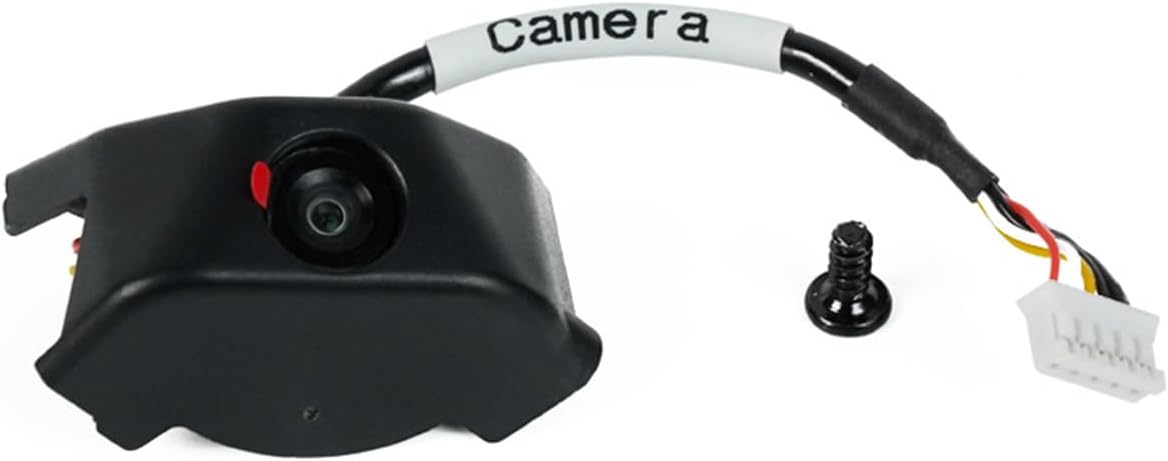
The Anycubic Kobra 3 Camera delivers high value for its cost. Rated 4.5 stars, it provides clear resolution and remote monitoring capabilities that help prevent failures and save filament, making it an excellent choice for budget-conscious makers.
We may earn a commission when you buy through this link, at no additional cost to you.
Its DIY frame feature allows you to customize the look, adding a personal touch to your setup. The camera connects via USB to the printer interface, enabling you to view status through the Anycubic app and identify issues like jams quickly.
While assembly is needed, it requires only minutes and basic tools, which is a minor trade-off for the customization benefits. The wide compatibility with Anycubic and Klipper printers ensures flexibility without needing expensive proprietary kits.
Choose this if you want a cost-effective solution with room for creativity. It suits users who appreciate hands-on customization and need reliable monitoring without breaking the bank on their print projects.
Replace the frame to match your printer style or add personal flair, making your setup unique and expressive.
Enjoy real-time checks and problem resolution at a low price, helping you save materials and reduce print failures.
We may earn a commission when you buy through this link, at no additional cost to you.
This camera kit offers a premium integration experience for FlashForge owners. With a 4.1 rating, it focuses on HD quality and workflow smoothing, ensuring that your prints are monitored reliably and your creative moments are captured effectively.
We may earn a commission when you buy through this link, at no additional cost to you.
Key strengths include the ability to record the entire printing process and export files via USB. The Flash Maker app allows remote control and status checks, enhancing productivity and reducing the need for physical presence near the printer.
The main trade-off is the specific compatibility, which limits use to AD5M series printers. However, the ease of installation with provided guides ensures you get started quickly without technical hurdles or complex setups.
Buy this if you own a FlashForge printer and want seamless integration with recording features. It is ideal for those who value high-quality visuals and want to share their printing progress with clarity.
Record videos of the entire print process to preserve details and share your achievements with your community.
Monitor and control remotely via app to save time and prevent errors during long or complex prints.
We may earn a commission when you buy through this link, at no additional cost to you.
This version of the Nebula Camera emphasizes continuous monitoring with a focus knob for precision. Rated 4.4 stars, it ensures clear visuals even in the dark, making it perfect for long overnight prints where lighting conditions change.
We may earn a commission when you buy through this link, at no additional cost to you.
Its main strength is the built-in infrared light that illuminates the print without glare. You can manually adjust focus for sharper images and check status via app, helping you catch issues like misalignments immediately.
The trade-off is manual focus adjustment, which takes time but improves clarity. USB connection limits some setups but offers stable power, making it a reliable choice for users who prioritize image quality over automation.
Select this if you need reliable night monitoring and sharp visuals. It suits printers requiring precise focus and those who value HD quality for reviewing detailed layer structures.
Maintain clear visibility around the clock with infrared light to prevent failures during unattended night runs.
Adjust the lens manually to get crisp, sharp images that reveal fine details in your prints.
We may earn a commission when you buy through this link, at no additional cost to you.
Designed specifically for FlashForge printers, this kit simplifies the monitoring process. With a 4.0 rating, it provides essential remote control features that help you manage prints from afar without requiring complex third-party solutions.
We may earn a commission when you buy through this link, at no additional cost to you.
Its strength lies in seamless integration with the Flash Maker app, enabling quick status checks and stops. The package includes all necessary components, making installation straightforward for users who want a plug-and-play experience.
The trade-off is limited functionality compared to more advanced models, such as lacking time-lapse tools. However, for basic remote monitoring needs on supported models, it offers reliable performance and ease of use.
Choose this if you want a straightforward official solution for AD5M series. It suits users who need basic remote control without extra features or complexity.
Get started quickly with a complete kit designed for easy installation and immediate use.
Access and control your printer from anywhere using the compatible app for better workflow management.
We may earn a commission when you buy through this link, at no additional cost to you.
This monitor variant offers reliable real-time viewing with a strong focus on clarity. Rated 4.4 stars, it helps you identify issues like layer adhesion problems quickly, ensuring higher print success rates and efficient use of materials.
We may earn a commission when you buy through this link, at no additional cost to you.
Its strengths include ultra-clear resolution and compatibility with Kobra 3 and 2 series. The DIY frame option adds a unique touch, allowing personal customization while maintaining functional connectivity via USB interfaces.
The main trade-off involves assembly steps, which are minimal and supported by video guides. This minor effort is outweighed by the benefits of clear monitoring and the ability to personalize your setup.
Buy this if you have a Kobra printer and value high-quality visuals. It is suitable for those who want reliable monitoring with a touch of customization.
View every layer with high detail to catch errors early and improve overall print quality.
Customize your camera frame to fit your style while keeping full access to monitoring features.
We may earn a commission when you buy through this link, at no additional cost to you.
Optimized for the K1 series, this camera offers high-definition monitoring to enhance efficiency. With a 4.5 rating, it ensures clear visuals without missing details, helping you verify progress and share results seamlessly via the Creality Cloud.
We may earn a commission when you buy through this link, at no additional cost to you.
Its standout feature is automatic time-lapse generation, which logs every layer to create videos after completion. The reserved camera interface on the printer makes installation effortless, reducing setup time significantly.
Trade-offs include limited compatibility and the need for a cloud account. However, these ensure stable performance and easy sharing, making it a top choice for K1 owners focused on visual documentation.
Choose this if you own a K1 printer and want HD clarity. It suits users who value high-quality recordings and easy access to their prints via cloud services.
Capture sharp 1080P images to review every detail and ensure the best possible print outcomes.
Generate time-lapse videos automatically to showcase your work and share progress with others easily.
We may earn a commission when you buy through this link, at no additional cost to you.
This camera emphasizes safety with real-time anomaly monitoring. Rated 4.4 stars, it can alert you to issues like jams and pause prints to save filament, providing peace of mind during long or unattended sessions.
We may earn a commission when you buy through this link, at no additional cost to you.
Its strengths include clear 1080p visuals and automatic time-lapse creation. Manual focus allows sharp adjustments, while night vision supports continuous monitoring in any lighting condition.
The trade-off involves needing WiFi for full features and manual lens adjustment. However, these ensure precise operation and reliable detection, making it a solid choice for safety-focused users.
Select this if you prioritize error prevention and waste reduction. It suits those who want automated alerts and clear images for their prints.
Get timely alerts and automatic pauses when errors occur to prevent waste and protect your printer.
Monitor every layer with high-definition clarity to spot issues early and maintain print integrity.
We may earn a commission when you buy through this link, at no additional cost to you.
This model adds smart spaghetti detection to prevent waste during printing. With a 4.3 rating, it offers 24-hour monitoring and time-lapse features, ensuring you stay informed and can share results effortlessly through the Creality Cloud app.
We may earn a commission when you buy through this link, at no additional cost to you.
Its main advantage is the advanced detection feature that identifies print errors instantly. Combined with clear visuals and easy WiFi setup, it delivers reliable performance for users who value both safety and documentation.
The trade-off is dependency on the app and compatible models. However, these ensure seamless integration and effective error handling, making it a strong option for smart monitoring.
Buy this if you want automated error alerts and reliable monitoring. It suits users focused on reducing waste and capturing print progress efficiently.
Detect and alert on spaghetti errors immediately to save material and prevent failed prints.
Keep an eye on your prints anytime with 24-hour support and clear real-time viewing.
We may earn a commission when you buy through this link, at no additional cost to you.
This kit focuses on recording prints for offline review. With a 4.1 rating, it allows video generation during printing, which can be exported via USB to a flash drive for later viewing or sharing.
We may earn a commission when you buy through this link, at no additional cost to you.
Its strengths include high definition quality and an extended cable for easier enclosure installation. As an official accessory, it integrates well with AD5M and AD5X models, offering reliable performance for basic needs.
The trade-off is limited smart features like time-lapse or app alerts. However, it provides a solid way to capture and store videos, making it suitable for those who prefer local file access.
Choose this if you want reliable video recording for your FlashForge printer. It suits users who prioritize file export and straightforward setup over advanced app features.
Generate and export videos to USB for offline review and easy sharing with others.
Enjoy an extended cable that makes installation into enclosures simpler and more flexible.
We may earn a commission when you buy through this link, at no additional cost to you.
Selecting the right camera involves balancing features like resolution, connectivity, and compatibility. This guide breaks down key factors to help you choose a model that fits your specific printer and workflow needs effectively.
Ensure the camera works with your specific printer model. Many options are designed for brands like Creality, FlashForge, or Anycubic. Check compatibility lists to avoid integration issues or limited functionality.
Prioritize models listed for your printer to guarantee smooth connection and full feature access.
Look for HD resolution like 1080p to capture detailed images of your prints. Clear visuals help you spot issues like layer shifts or stringing that might not be visible in lower-quality feeds.
Higher resolution ensures you can examine prints closely and make accurate assessments from a distance.
Most cameras use WiFi for remote access or USB for local connection. WiFi enables true remote viewing, while USB provides stable, wired feeds. Choose based on your network setup and monitoring preferences.
WiFi is essential if you want to check prints away from home, while USB is simpler for in-workshop use.
The companion app determines how easily you can view feeds and control the printer. Look for intuitive interfaces with features like pause, stop, or alerts. Reviews often highlight ease of use for specific apps.
A user-friendly app saves time and improves your overall monitoring experience during prints.
Night vision allows monitoring in dark environments using infrared light. This is vital for overnight prints or low-light workshops. Check for built-in IR lights to ensure clear images around the clock.
Night vision is critical for uninterrupted 24-hour monitoring without disturbing your space.
Auto time-lapse generates videos without manual effort. Some models capture images per layer, while others offer manual recording. This feature is great for sharing progress or analyzing print speed.
Choose cameras with automated time-lapse if you want to capture and share prints easily.
Advanced models offer spaghetti detection or anomaly alerts to prevent waste. These features pause prints when errors occur. If you run long or unattended prints, safety features can save materials and prevent damage.
Safety alerts are worth investing in if you prioritize reducing failures during unattended sessions.
Some cameras require DIY assembly or manual focus adjustment. Others come as plug-and-play kits. Check the included guides and videos to ensure you can set it up comfortably without advanced technical skills.
Opt for easy-install options if you prefer quick setup without needing tools or technical help.
Start by connecting the camera to your printer via USB or power port. Download the companion app from your device store and create an account if required. Ensure your printer and phone are on the same WiFi network for remote access.
Adjust the focus manually if the camera supports it. Aim the lens at the print bed or nozzle for best visibility. Test the live feed to confirm it is clear and stable before starting any print jobs.
Clean the lens regularly with a soft cloth to avoid smudges. Check for firmware updates in the app to maintain performance. Restart the camera if you experience connection issues or feed lag during prints.
Yes, most cameras with WiFi connectivity allow remote access via their companion app. This lets you view your print status from anywhere with internet access. Ensure your app supports secure remote connections for safety.
Choose cameras designed for your specific printer model to avoid connection issues. Universal options may not support proprietary features. Check product descriptions for explicit compatibility lists before purchasing.
No, some models require manual activation or lack this feature. Look for cameras that mention auto time-lapse in their specs. This ensures you can capture progress without extra setup or effort.
Night vision is essential for dark environments or overnight prints. It uses infrared light to maintain clear visibility without bright lights. If you often print at night, this feature prevents blind spots and ensures safety.
Use a stable WiFi connection with strong signal strength near the printer. Lower video resolution settings can also reduce lag. Restarting the camera or router may resolve persistent connection issues.
Generic cameras may not integrate with printer controls or apps. Dedicated 3D camera cameras are optimized for mounting, power, and monitoring software. Using one ensures seamless operation and reliable performance.
Most cameras focus on visual monitoring and lack speakers. Audio alerts typically come from the printer itself or the app. Check product details if you need integrated audio features for notifications.
Camera integration is usually managed through the app, not slicers. However, some systems allow export for review. Ensure the camera supports your preferred workflow for seamless documentation and monitoring.
We have reviewed ten top cameras that cater to different printer brands and feature needs. The Creality Nebula offers excellent automation, while Anycubic provides budget flexibility. FlashForge kits deliver premium integration for their models.
Prioritize resolution, remote access, and compatibility with your printer. Safety features like spaghetti detection can save materials. Choose a model that fits your budget and offers the monitoring clarity you require.
Prices and availability change frequently, so check current listings before buying. Ensure the camera supports your specific needs for night vision, time-lapse, or remote control to make the best investment for your workspace.